
How to Navigate the Course
How to Navigate the Course
1. Course page overview and navigation areas
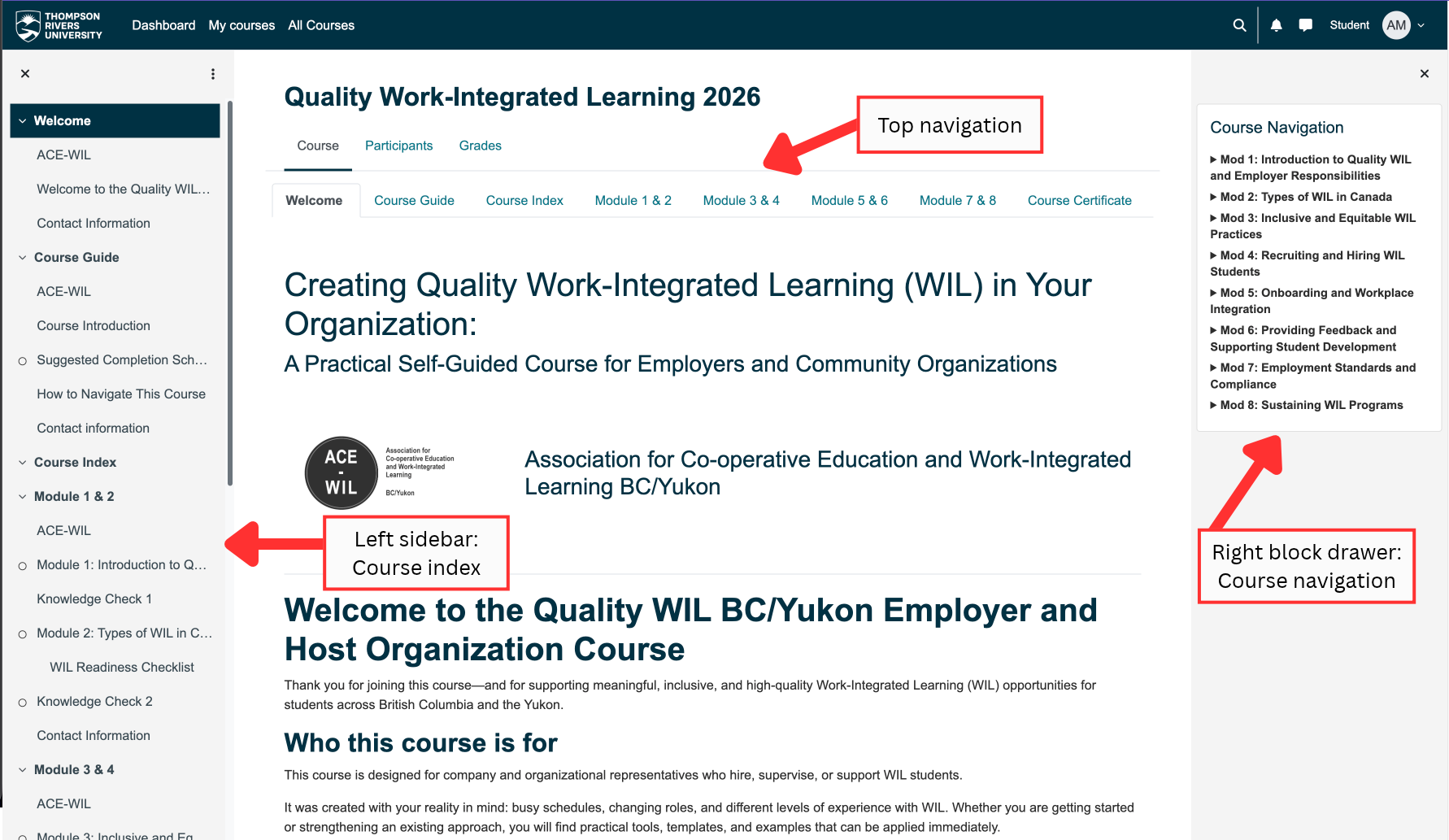
When you open the course, you will see the main course page. The page includes several navigation areas to help you access the course content. The top navigation provides links to the Course Guide, Course Index, modules, and Course Certificate.
The Course Index appears in the left sidebar, while the Course Navigation drawer appears on the right. You can use either area to move through the course.
2. Course Index and Course Navigation drawer
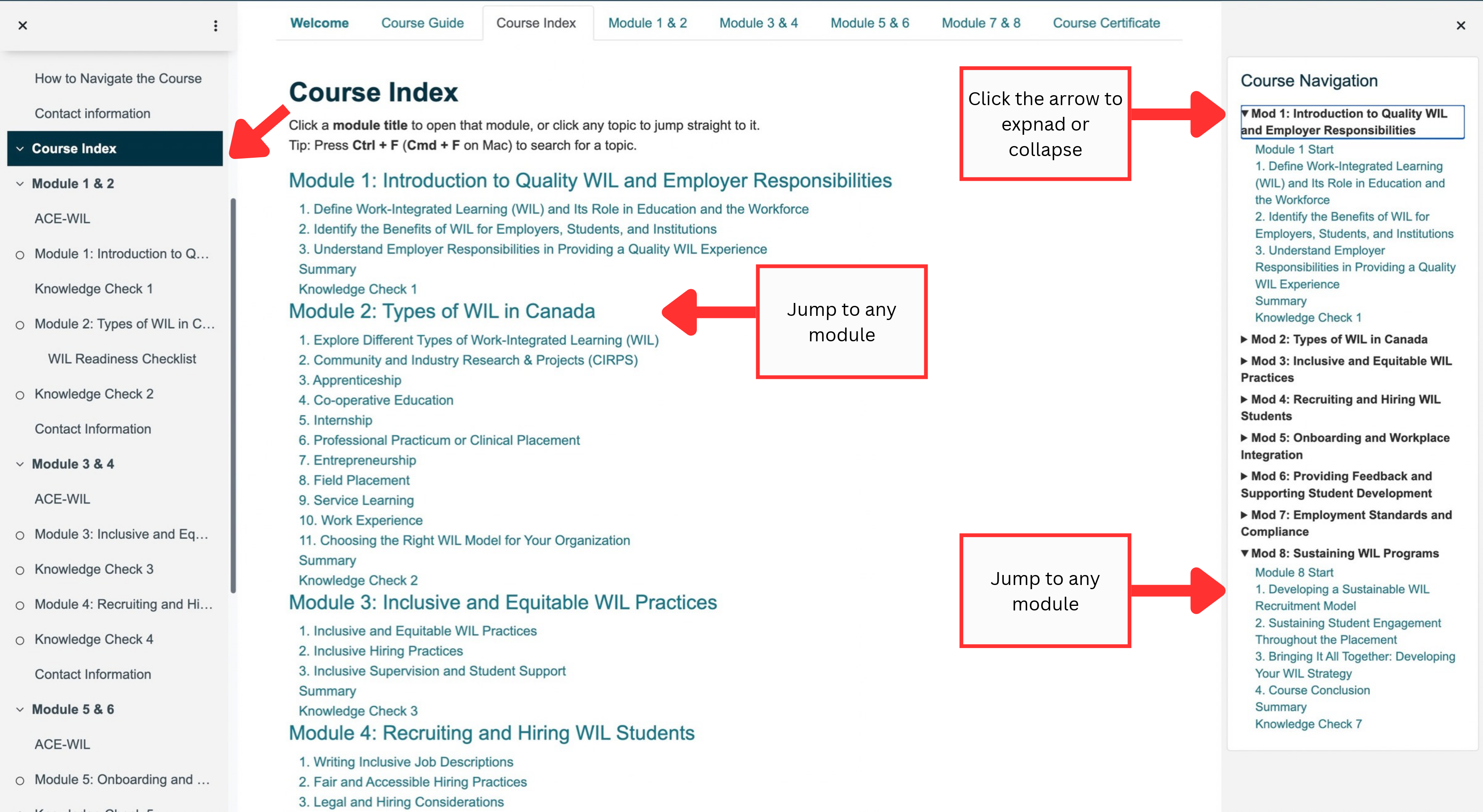
The Course Index lists all the course modules and activities. Select a module or activity to open it.
You can also use the Course Navigation drawer on the right to move directly to a module or activity. Click the arrow to expand or collapse the course modules.
3. Opening the Course Navigation drawer
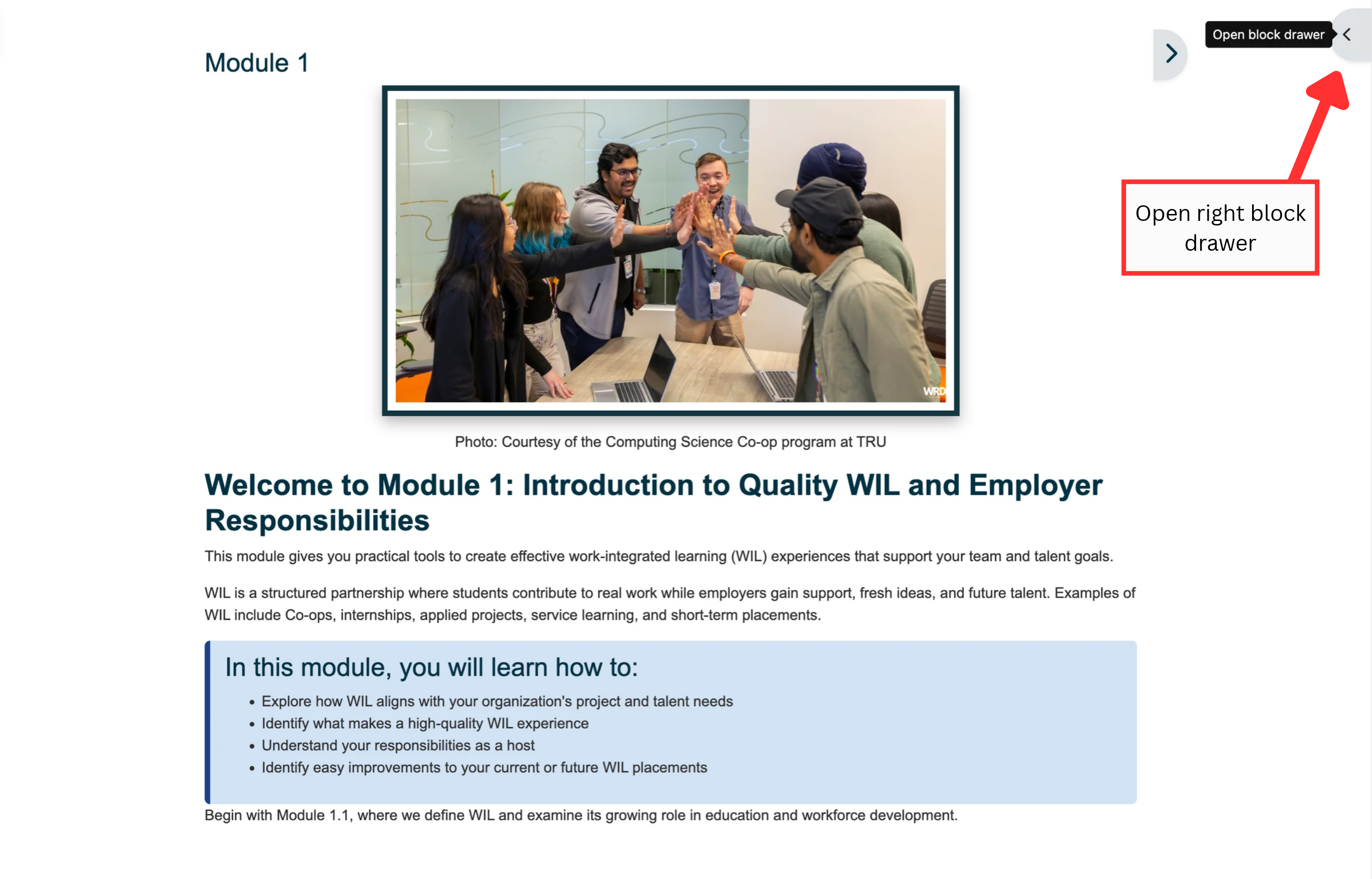
When you open a module, the Course Navigation drawer may be closed. Select the arrow on the right side of the page to open the drawer and view the module contents.
4. Open Course Index and Course Navigation
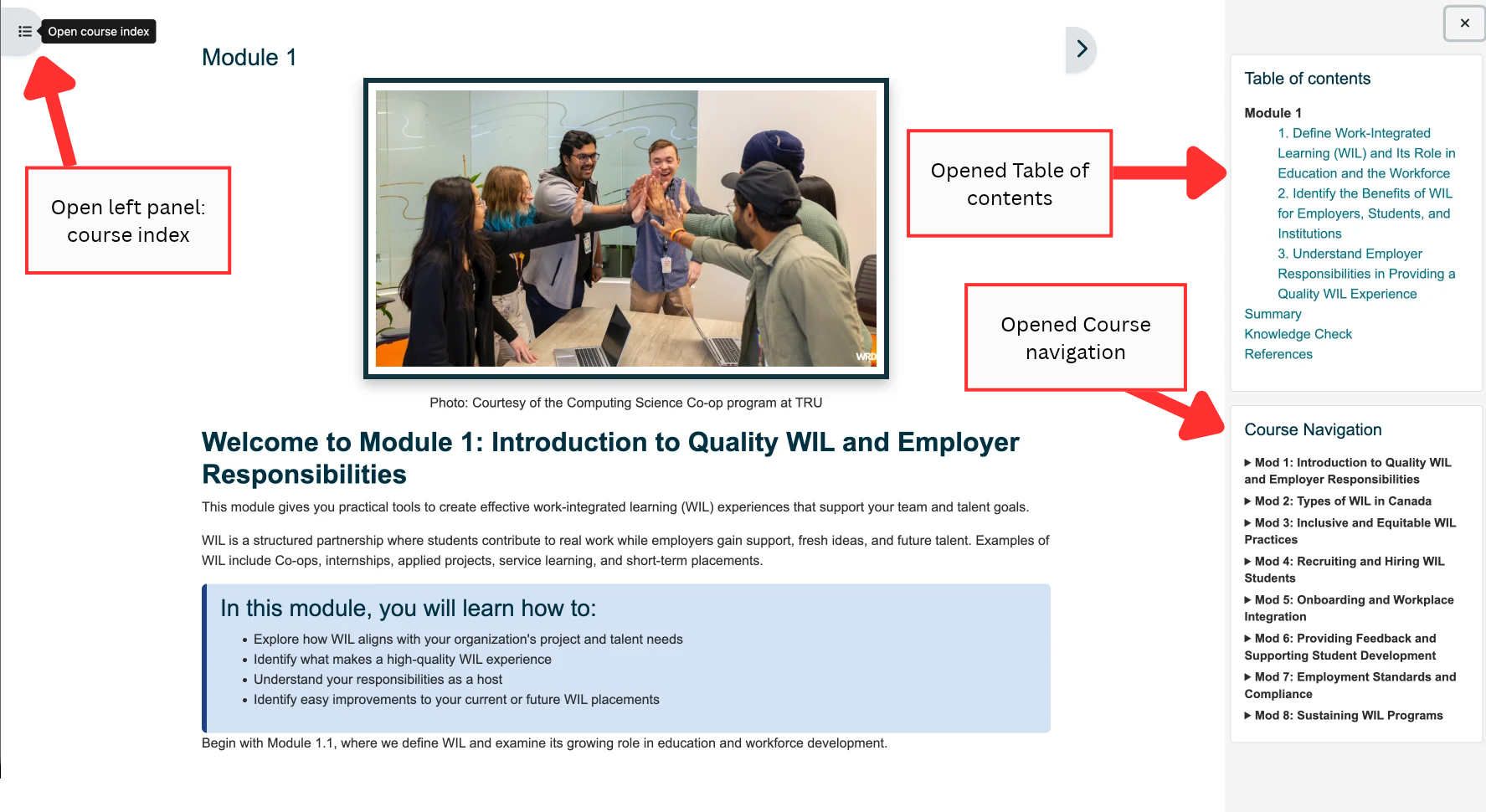
Within a module, you can open both the Course Index, Table of contents and Course Navigation. The Course Index shows the full course structure, while Table of contents shows the contents of the current module.
5. Navigating within a module
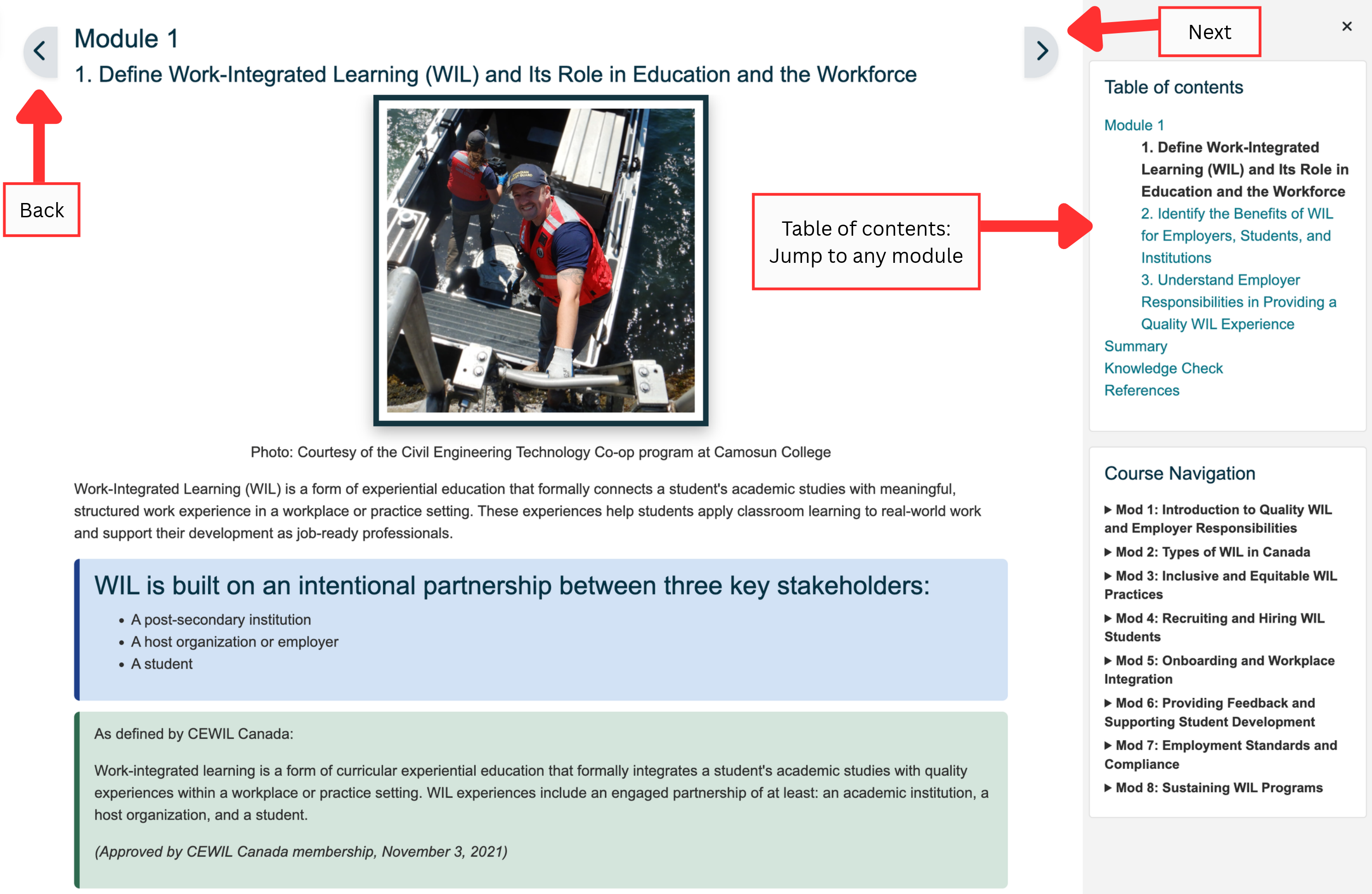
Use the Table of contents to jump to a specific topic within the module. You can also select Next to move forward or Back to return to the previous page.